Everything you need to know, step by step.
From installing Hazel to saving whole playlists onto your SD card. Each part stands on its own, so jump to whatever you need.
Install Hazel
Hazel isn't on the Play Store. There are two official places to get it, and you should only ever install it from one of them.
- Choose where to get it. F-Droid keeps Hazel updated for you if you already use it. Otherwise, get it from GitHub Releases.
- Pick the right file on GitHub. The one with arm64-v8a in its name works on almost every phone made in the last several years.
- Open the downloaded file. The first time, Android asks you to allow installs from your browser or file manager. Allow it, then tap Install.
Got Hazel from somewhere else? Check it against the fingerprint on the home page. A copy that doesn't match has been changed by someone else.
Your first download
This is the whole thing in four taps.
- Copy a link from the app or website you're watching in. Most apps have it under Share, then Copy link.
- Open Hazel and paste it into the box at the top of the home screen. Hazel reads the link and shows the video.
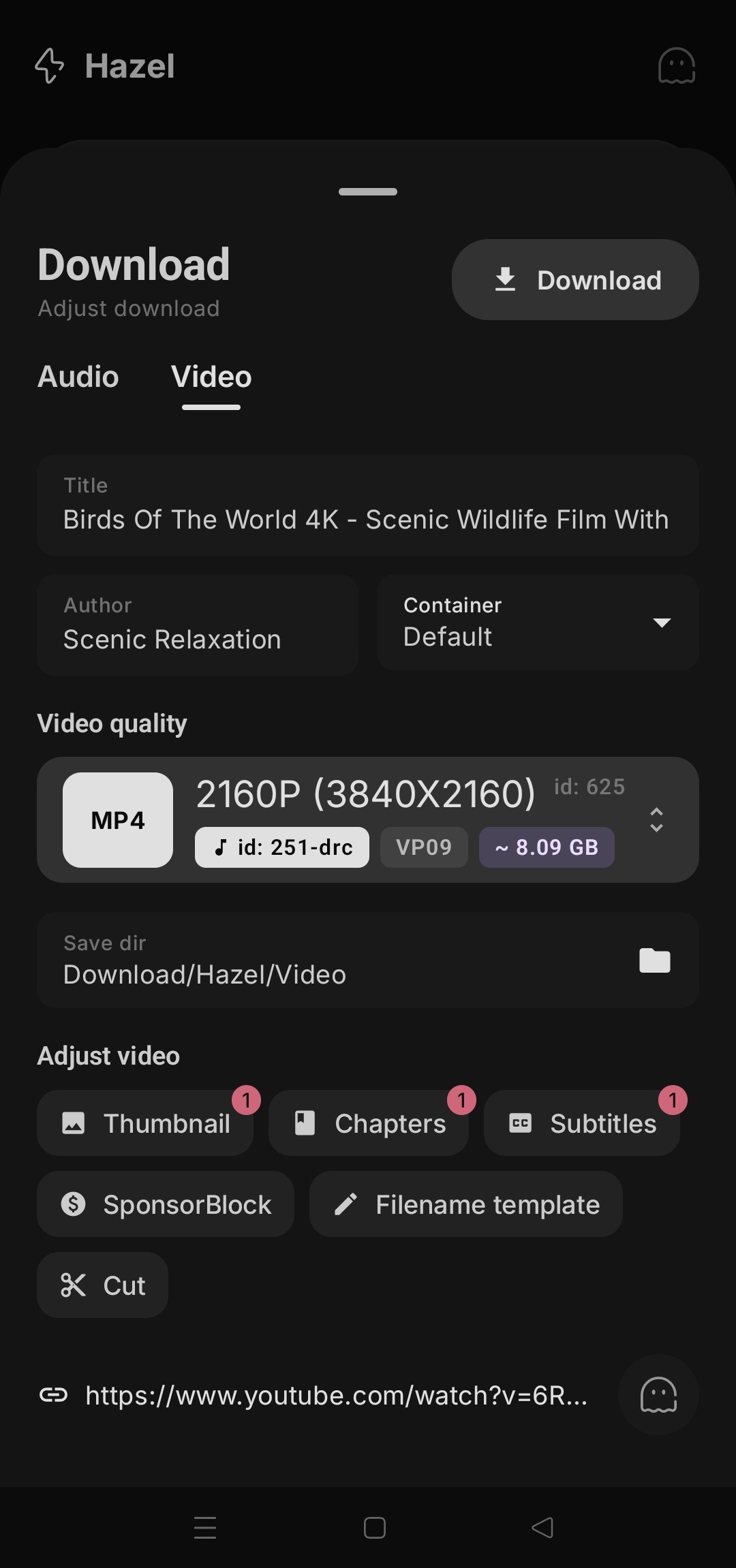
- Tap Download. A sheet opens where you can choose music or video, the quality, and the title and artist the file will have.
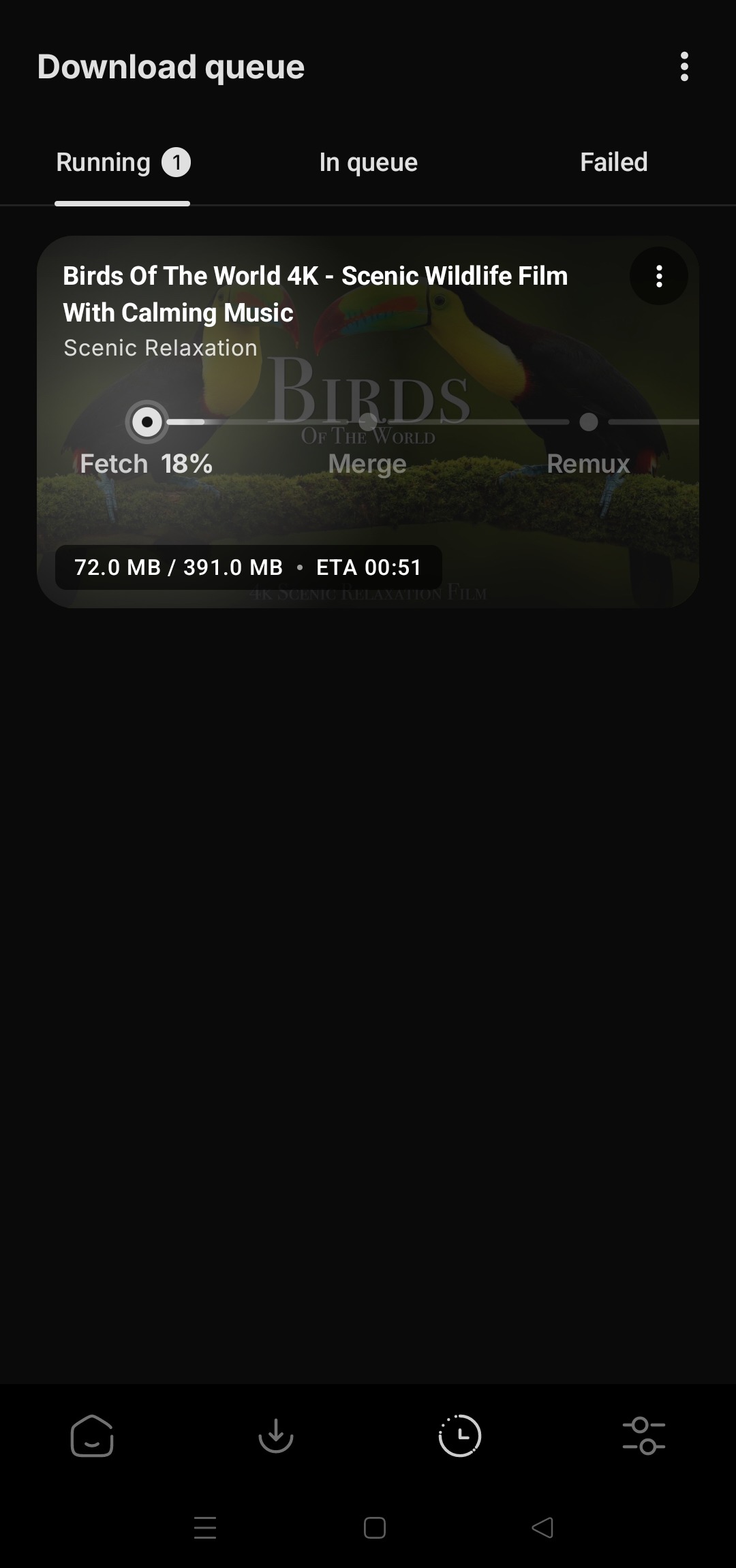
- Tap Download again. You can follow it on the Downloads tab, and it shows up in your library when it's done.
Playlists and many links
Paste a playlist or a channel link, or several links at once, and Hazel lists everything it found.
- Download all saves every item with the same settings.
- Tap any single item to give it its own quality or type, for example music only for one song in a video playlist.
- Links you read but haven't downloaded stay on the home screen, even after closing the app, until you clear them.
Long lists can take a while. You can close the app; the downloads keep going and the notification shows how far along they are.
Search and play
No link? Type words into the same box on the home screen and Hazel searches for you. You can choose where it searches, such as YouTube, YouTube Music, SoundCloud or Bandcamp.
- Tap a result to play it right on its card, with a seek bar, full screen and quality choice.
- Double tap the left or right side to skip back or forward.
- Your recent searches are kept so you can pick up again. Incognito mode turns that off.
Quality and extras
The download sheet is simple at first glance. Everything below is optional.
Quality and format
Choose anything from a small file up to 4K, with the size shown before you start. For music, pick the audio format your player likes best.
Cut
Save only part of a video or song. Drag the start and end on the live preview, or type exact times.
Cleaner files
- SponsorBlock skips sponsor messages, intros and other segments that people have marked.
- Chapters can be kept inside the file, or split into one file per chapter.
- Subtitles in the languages you pick, added to the video or saved next to it.
- Audio language lets you choose the soundtrack when a video has several.
- Cover art adds the thumbnail to music files, cropped square if you like.
Live streams
For a live stream you can record from the very beginning. For a premiere that hasn't started, Hazel can wait and download it once it goes live.
Where your files go
By default, music goes to Download/Hazel/Audio and video to Download/Hazel/Video on your phone. Any music or gallery app can find them there.
Saving to an SD card
- Open MoreDownloads and tap Audio or Video. You can also tap the folder in any download sheet.
- Choose your SD card from the list. The card's free space is shown next to it.
- Android opens the card. Tap Use this folder and allow access. Hazel creates a tidy Hazel/Video or Hazel/Audio folder for you.
Downloads going to the card also do their work on the card, so a large video doesn't fill up your phone while it downloads.
If the card is taken out or gets full, nothing is lost. Hazel saves to your phone instead and tells you which files went where.
Prefer a specific folder? Choose Another folder and pick anywhere on the phone or card. Choose Phone storage to go back to the default at any time.
Background downloads
Downloads keep going when you lock the phone or switch apps. Pause, resume or cancel them from the notification, or from the Downloads tab.
- Wi-Fi only. Turn it on in MoreDownloads and downloads wait until you're on Wi-Fi. One that has already started isn't cut off.
- Speed limit. Off by default. Set one there too if Hazel shouldn't use your whole connection.
- Failed downloads are kept on the Failed tab so you can retry them.
Some phones stop apps in the background to save battery. If long downloads stop on their own, open MoreBackground downloads and allow unrestricted battery use.
Sites that need a sign-in
Some videos are only visible when you're signed in, like private posts or age-restricted videos. Hazel can use your sign-in for those sites.
- Open MoreCookies.
- Sign in to the site inside Hazel, or import a cookies file you exported from your browser.
- Try the link again. Hazel uses that sign-in only for that site.
Your sign-in stays on your phone. Clearing temporary files doesn't remove it; delete it from the same screen when you no longer need it.
Keeping Hazel working
Websites change often, and sometimes a change stops downloads from working for a day or two. Hazel can update the part that does the downloading on its own, without waiting for a new app version.
- Open MoreSoftware update and tap Check now.
- Stable is right for most people. Nightly gets fixes sooner, which helps when a site has just changed.
- Turn on automatic updates and it stays current by itself.
If a link still won't read, MoreLink Reading has a slower, more patient mode for weak connections.
Incognito
Tap the ghost at the top right of the home screen. While it's on, downloads aren't added to your library and links and searches aren't remembered. The files themselves still save as usual.
Convert to audio
Already have a video on your phone and only want the sound? Open MoreOffline convert video to audio, pick the video, choose a format, and save. It works without a connection, and nothing leaves your phone.
Backup and tidying up
Backup
MoreBackup saves your settings, download history, queue, sign-ins and searches to a file. Restore it on a new phone and everything merges in, with queued downloads waiting paused.
Temporary files
MoreTemporary Files shows the space Hazel uses for unfinished downloads and other leftovers, including on your SD card, and clears them in a tap. Your saved music and videos are never touched.
Look and language
Choose a dark or light theme and an accent colour in MoreAppearance, and the app language in MoreLanguage.